Two panes, one window
Open any two folders side by side. Copy → and Move → send what you picked to the other side, or just drag it across.
DualFiles is a two-pane file manager for your Mac. Copy and move between folders in one click, cut and paste like on Windows, and see at a glance what one folder has that the other doesn't.
macOS 14 Sonoma or later · Apple silicon (M1 and newer)
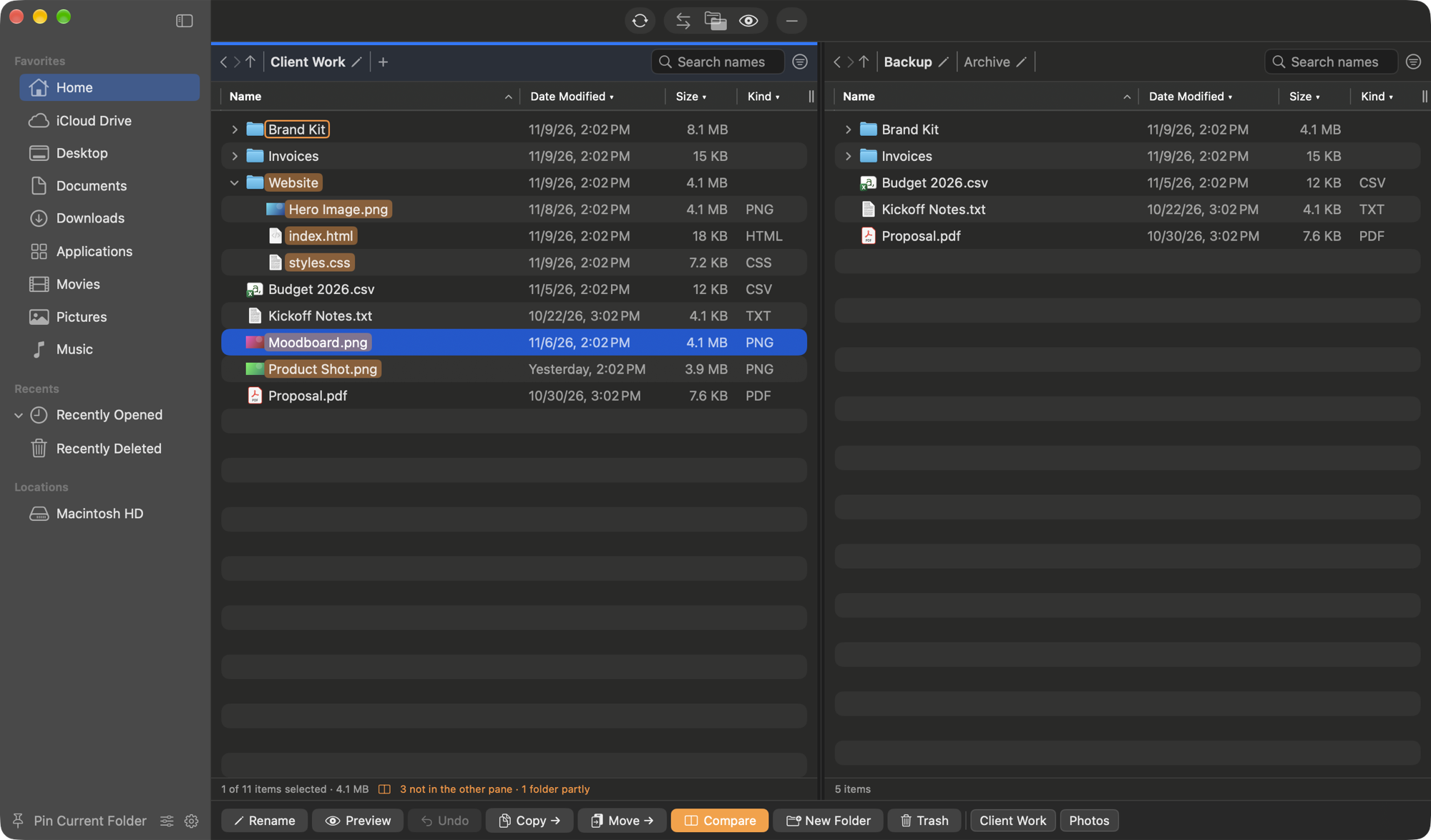
One window, two folders, and the tools for moving things between them.
Open any two folders side by side. Copy → and Move → send what you picked to the other side, or just drag it across.
⌘X then ⌘V moves files, just like Windows. ⌘C copies, and Undo puts things back.
One click highlights everything in one pane that's missing from the other, even deep inside subfolders. Great for checking backups.
Two tabs in each pane. Save the folders you use together as a preset, and open them all again with one click.
Drop a folder down to see what's inside without leaving the one you're in. Use → and ← on the keyboard too.
Folder sizes add themselves up. Swap Size and Kind for a video's length, a photo's resolution, how many items a folder holds, or tags.
Find files by name as you type, and narrow the list by date, type and size, including inside subfolders.
Turn images, audio, video and documents into other formats, and zip or unzip, right from the window.
See which files are still syncing, open Recently Opened and Recently Deleted in a click, and let other apps' "Show in Finder" open DualFiles.
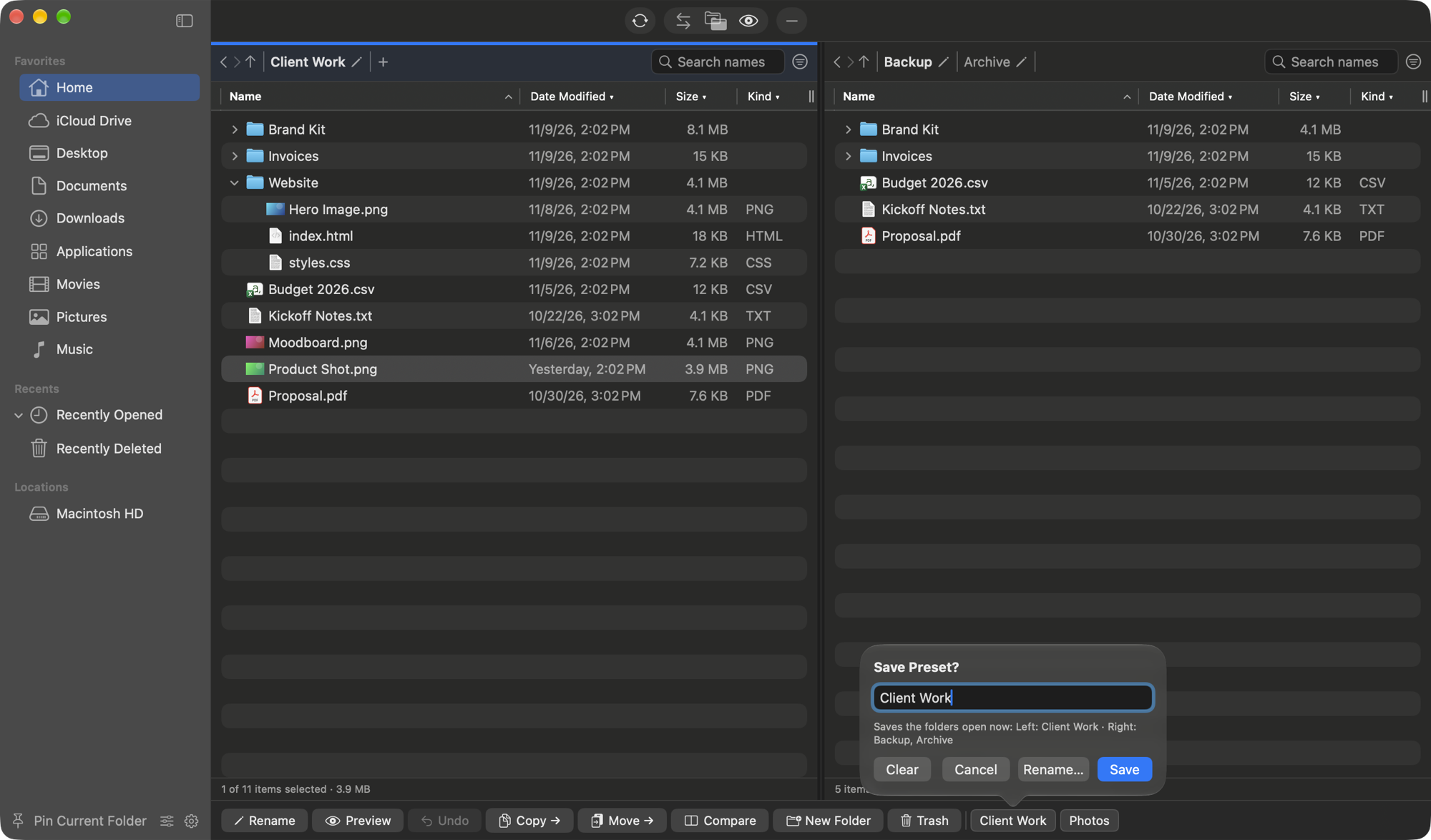
Working on a project often means the same folders every day. Save them, with their tabs, to one of the two preset buttons at the bottom of the window.
Click a preset to open everything it saved. Hold it, or double-click it, to save what's open now or give it a new name.
Pay once and it's yours.

one-time purchase
You'll get your download link by email right after paying.
macOS 14 Sonoma or later, on a Mac with Apple silicon.
Macs with Apple silicon (M1 or newer) running macOS 14 Sonoma or later.
No. It's $10 once. There's no account to make and nothing to renew.
After you pay, you'll get a download link by email. Open the downloaded DualFiles.dmg and drag DualFiles into your Applications folder.
It works alongside Finder. If you like, its Settings let other apps' "Show in Finder" open DualFiles instead, and you can switch that back any time.
Yes. DualFiles is signed with an Apple Developer ID and checked by Apple before it's released, so your Mac opens it without warnings. And when you delete files, they go to the Trash, and DualFiles always asks first.
macOS asks once before any app can open your Desktop, Documents and Downloads. To show Recently Deleted (your Trash), DualFiles needs Full Disk Access, which you can turn on in System Settings when it asks.
No. DualFiles never connects to the internet and doesn't send anything anywhere. See the privacy policy.
Email us within 14 days of buying and we'll refund you in full. See the terms.